
How to Record Your Screen on a Mac

If you’ve watched any of my techy videos, you might be curious as to how to record your screen on a Mac, and what software I use.

This week’s video goes a little meta because I show you how to record your screen on a Mac, or if you have a PC I show you what software to check out. I then show you how to edit the recorded video, and export it.

Let’s get started!

How to Record Your Screen on a Mac
Recommended Software for Both PC & Mac

how to record your screen on a mac

For the Mac: Screenflow is my top pick for recording your screen on a Mac. I’ve been using it for years, and I was even interviewed by the fine folks who make Screenflow about how I use their software.

how to record your screen

For the PC: Jing might be the way to go if you’re just getting started recording your screen on a Windows machine. They also have a pro version that lets you export to YouTube.

For the PC: Camtasia, created by the same company as Jing, is the full featured application that lets you record your screen and edit your videos. They also recently added a Mac version of Camtasia, but I have yet to try it.

How to Record Your Screen on a Mac in 3 Easy Steps

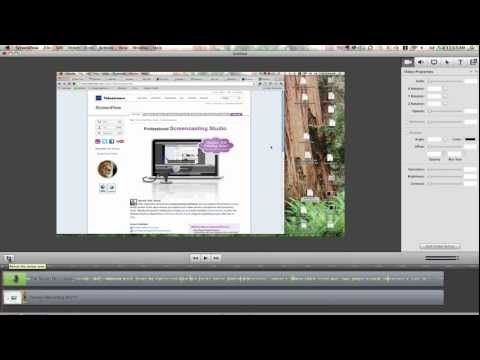
  1. Using the Screenflow software, click the record button and watch the countdown that lets you know when the recording has started. You can also select whether you want your video camera to record at the same time as you record your screen.
  2. Simply speak into your built-in microphone (or attached microphone), while clicking around your computer. It’s being recorded!
  3. Once you’re done, click the stop record button. You’ll see your video in the Screenflow editor window, where you can delete any sections that you don’t want before exporting the video.

Bonus Tips

When you’re first learning how to record your screen on a Mac, you might make mistakes or want to re-record certain bits. You can do that by saving your .Screenflow files for future editing.

You can also record a second video, and append this new footage to an existing recording. This allows you to mix in the new video with your existing video.

Another tip for when you’re recording is to pause after you mess up. When you’re editing the video you’ll see the spots where you stopped talking and you’ll be able to more easily remove those bits.

After you pause, simply re-state your thoughts from the beginning and your videos will come out sounding even more professional!

Let’s talk video

If you enjoyed this video, you’ll want to make sure you grab my “getting techy with it” video series. Click here to get instant access.

Video marketing is both fun and rewarding, and now that you know how to record your screen on a Mac I’d love to know what kind of videos you plan on making.

Read related articles and soak up the knowledge!

Want more tech-made-simple marketing advice? Enter your email below and get techy with me every Wednesday right in your inbox.

Post comment as twitter logo facebook logo
Sort: Newest | Oldest
GenevièveCôté 5 pts

Hey Nathalie, I'm using camtasia on Mac....are there any huge differences between camtasia mac and Screenflow?

_chelleshock Thanks so much for the Springpad vid....this is exactly what I needed!!

_chelleshock 5 pts

èôéGenevièveCôté No problem! I'm so glad you liked it :)

NathLussier 44 pts moderator

èôéèôéGenevièveCôté I haven't used Camtasia, but you can probably see the differences based on the video here. If you've got something that works for you, there's no need to change it. ;)

fawndesigns 6 pts

Natalie, great vid! I've used Jing, but I Screenflow and an external mic are definitely at the top of my next purchases list.

NathLussier 44 pts moderator

fawndesigns Yay, I love spreading the word about cool software. :)

KatieClark 5 pts

I love the tip about pausing when you make a mistake! When I was recording the video for my sales page I kept making a lot of mistakes and it was hard to edit because I could never find them and it was hard to get the rest of the video to flow after I cut it. Thanks for this great video!

NathLussier 44 pts moderator

KatieClark You're welcome Katie! And yes, I've been there - it's tough to know where you needed to edit if you don't leave a pause. :)

laurie.rosenfeld 10 pts

Thanks Nathalie! I am new to video and a PC user thinking about getting a Mac. I am bookmarking this post! Thanks for the tips!

NathLussier 44 pts moderator

laurie.rosenfeld Hey Laurie, thanks for stopping by and let us know how it goes! I'm a longtime Mac fan and user, but I've worked extensively on PCs too. There are definitely benefits to both systems. :)

_chelleshock 5 pts

One of the other options is Screencast-O-Matic, which is a Java based free program that doesn't require any download or installation. I think there is a tiny logo on the video if you're not a member - upgrading is like $12/year, so definitely affordable. I just recorded my first screencast video post with it yesterday and I found it really easy to use. I have used Jing - I'm not sure about the embedding capabilities of it, but I kept having issues with it not recording my voice for several seconds at a time (which happened across 2-3 different videos when I was trying to submit a video to Headway support showing what I was doing).

The video I just recorded yesterday (it's up now) was showing people how I use Springpad to keep my current projects & tasks organized. I think it made what I was talking about a lot easier and faster to understand than if I had done a text based post (which would have been LONG, since the video was nearly 10 mins) with a ton of screencap photos. I'm not sure how often I'll use videos like that but I'm definitely going to keep an eye out for opportunities to!

NathLussier 44 pts moderator

_chelleshock Thanks for sharing Screencast-o-matic with us, that's another great resource! Also thanks for sharing your experience with Jing, I think it works well for short bits but like you mentioned it might not be ideal.

I'm off to check out your Springpad video! :)

_chelleshock 5 pts

NathLussier And I'm not sure if I'm the only one who had issues with Jing or not, but, FWIW, I had a very easy time with Screencast-O-Matic :) Hope you liked the video!